
Keep your number, and do not cancel your current line first. MNP (mobile number portability) lets you move your Japanese mobile number from another carrier to Rakuten Mobile. When the switch to Rakuten Mobile is complete, your old carrier’s line is cancelled automatically, so you do not need to cancel it yourself.
Switching is a series of separate steps: applying to Rakuten Mobile, asking to move your number, and activating the line. Your old line stops working when the transfer completes, and how quickly each step finishes depends on the time of day and on deliveries. This guide explains each step so you can plan the changeover. Keeping your number and buying a new phone are separate choices; you can keep your number with the phone you already have if it works on Rakuten Mobile.
This guide covers individual applicants aged 18 or over moving a number from another Japanese carrier to Rakuten Mobile.
Which MNP route should you use?
There are two routes. MNP One Stop lets you move your number without getting an MNP reservation number first. The MNP reservation number route uses a number you get from your current carrier.
| Your situation | Route |
|---|---|
| You apply online, your current carrier supports MNP One Stop, and you have not got a reservation number | MNP One Stop |
| Your current carrier does not support MNP One Stop | MNP reservation number |
| You already have a reservation number | MNP reservation number |
| You apply at a Rakuten Mobile shop | MNP reservation number, even if your carrier supports MNP One Stop |
- Carriers that support MNP One Stop include NTT docomo, au, SoftBank, ahamo, UQ mobile, povo, Y!mobile, LINEMO, IIJmio, mineo and others on Rakuten Mobile’s list. Check the list for your carrier.
- One Stop still needs your current carrier. You skip the reservation number, but you still sign in to your current carrier’s website and complete its procedure. If you do not know your login details there and cannot resolve it, use the reservation number route.
- Reservation number validity: an online application needs a reservation number with at least 7 days of validity left. At a shop, a number within its validity period can be used.
What to check before you start
- Your login for your current carrier. You need it for MNP One Stop.
- The contract name at your current carrier. It must be the same as the name on your Rakuten Mobile contract. See below.
- An accepted identity document and matching Rakuten ID details. Your Rakuten membership details must match your document. See Rakuten Mobile requirements for foreign residents.
- A payment method. A credit card, an accepted debit card or bank account details. See Rakuten Mobile payment methods.
- A compatible phone. Check your phone on Rakuten Mobile’s compatibility list. A phone released in or before October 2021 may need a SIM unlock first. If your phone was bought outside Japan, see how to check an overseas phone before you start the transfer.
- SIM card or eSIM. A SIM card is delivered and inserted into your phone. An eSIM is built into the phone and needs no card, but you may still receive a start guide by post, depending on how you apply.
- A time to switch. Plan to activate during the day in Japan time, when you can deal with the changeover.
Check that the contract names match
The name on your current carrier’s contract and the name you use for Rakuten Mobile must be the same. Rakuten Mobile gives these examples of a mismatch:
- Your family name changed after marriage, but your current contract is still in your old name.
- Your current contract is in a parent’s name, with you registered only as the user.
For foreign residents, two more checks are worth making. First, the person who holds your current contract may not be you, for example if a family member signed it. Second, your name may be written differently at your current carrier, in your Rakuten ID and on your residence card, for example with or without a middle name, or in katakana instead of romaji. For Rakuten Mobile, your name must match your identity document exactly; the rules are in the name and address section of the requirements guide.
If the names do not match:
- Usually: change the name at your current carrier first, then apply to Rakuten Mobile.
- If your current carrier cannot change it: Rakuten Mobile says a name change (transfer of the contract) is done after the number moves to Rakuten Mobile.
- At a Rakuten Mobile shop: the number transfer and the name change can be done at the same time.
If your case is complicated, ask at a Rakuten Mobile shop before you apply.
How to switch with MNP One Stop
Rakuten Mobile’s application and account screens are shown in Japanese on the pages I checked. Where this guide names a screen item, it gives the Japanese label and my translation; your screen may look different.
- Prepare. Check everything in what to check before you start.
- If you use the employee referral offer, log in first. Log in through the referral link with the Rakuten ID you will use to apply, before you apply. See the referral steps.
- Apply to Rakuten Mobile. On the phone number screen, choose 他社から電話番号そのままで乗り換え(MNP) (“switch from another carrier and keep your number (MNP)”) and enter the number you want to keep. You receive an application completion email.
- Request the number transfer. In my Rakuten Mobile, open 申し込み履歴 (application history) and tap 電話番号の引継ぎ(MNP)申請をする (“request number transfer (MNP)”). Choose your current carrier; you are taken to its MNP One Stop page, where you sign in and complete its procedure.
- Check the status. After the request, you can check the status in your application history. Requests are handled on the schedule in the table below.
- Activate. When a button to start the transfer appears, follow activation.
| When you send the request | When it is completed |
|---|---|
| 0:00 to 21:20 | The same day |
| 21:21 to 23:59 | From 9:00 the next day |
A request sent just before 21:20 may not finish the same day, so allow time. This schedule is for the transfer request only; activation has its own schedule.
How to switch with an MNP reservation number
- Get a reservation number from your current carrier. Tell your carrier you want to move your number out (MNP), and write down both the reservation number and its expiry date. Getting the number is not an application to Rakuten Mobile. If the names do not match, change the name at your current carrier before getting the number.
- If you use the employee referral offer, log in first through the referral link, with the same Rakuten ID you will use to apply.
- Apply to Rakuten Mobile online or at a shop, and choose to keep your number (MNP). Online, the reservation number needs at least 7 days of validity left; at a shop, it must be within its validity period.
- Register the reservation number. In your application history, tap 電話番号の引継ぎ(MNP)申請をする. When asked for your current carrier, choose MNP予約番号取得済みまたは上記以外の通信会社 (“already have a reservation number, or another carrier”), then enter the reservation number and its expiry date. The same Stage 1 schedule applies.
- Activate by following activation.
If your reservation number expires before you activate, you need a new one. See if the transfer does not go through.
Activate your line and plan for the changeover
In short: requesting the number transfer and activating the line are separate steps. Activation starts when you tap MNP転入を開始する (“start MNP transfer”). When the transfer completes, your old carrier’s line stops working, so have your Rakuten Mobile SIM or eSIM ready first.
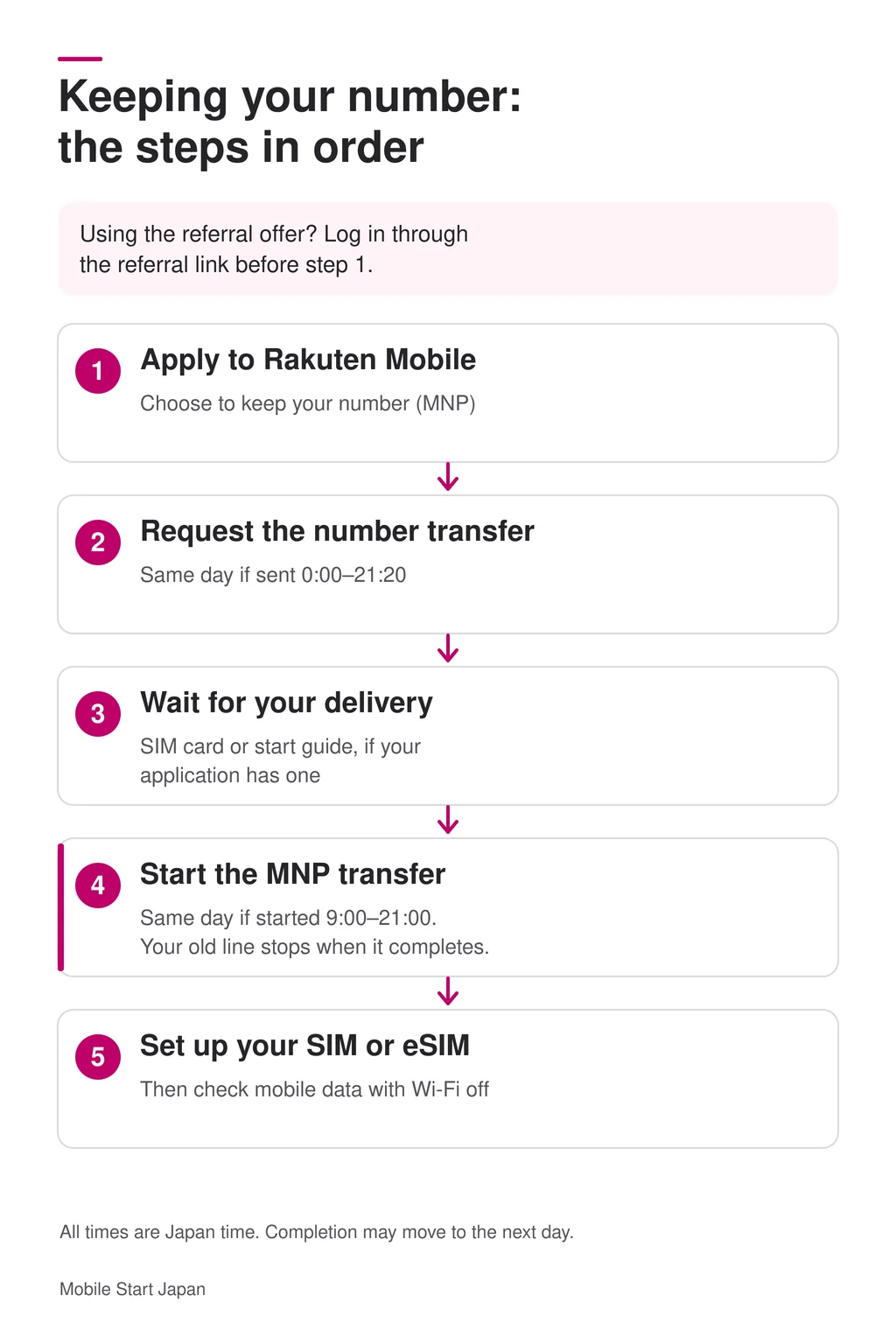
Completion times are estimates; transfers started shortly before the cutoff
or just after delivery may finish the next day.
The steps are not the same thing
| Step | What it does |
|---|---|
| Referral login (only if you use the referral offer) | Records the referral. It is not an application. |
| Application | Applies for a Rakuten Mobile plan with MNP chosen. |
| Number transfer request | Connects your current number to the application, through MNP One Stop or a reservation number. |
| Start MNP transfer | Moves the number. When it completes, your old line stops working. |
| Setting up the SIM or eSIM | Gets Rakuten Mobile working on your phone. |
When the “start MNP transfer” button appears
- SIM card: after the SIM card, and any product you ordered with it, arrives.
- eSIM: after the start guide arrives, and any product you ordered. Rakuten Mobile sends a start guide even for eSIM-only applications, except when you applied with Simple Mobile ID Verification.
- The button can take time to appear. If a delivery is shown as not received, the application may be cancelled or suspended.
Do not start the transfer before you have what you need. Rakuten Mobile warns that tapping the button at the wrong time can end your old contract. If your Rakuten Mobile application is then cancelled, for example because of an identity verification problem or an undelivered package, you may lose the number you planned to keep. You may also be left without a working phone until your SIM or start guide arrives. If you tapped it by mistake, contact Rakuten Mobile support.
| When you start the transfer | When it is completed |
|---|---|
| 9:00 to 21:00 | The same day |
| 21:01 to 8:59 the next morning | From 9:00 the next day |
Starting right after your delivery arrives, or just before 21:00, may mean the activation finishes the next day. Rakuten Mobile does not promise a fixed number of minutes.
With a SIM card
- Sign in to my Rakuten Mobile on a phone, tablet or computer, open your application and tap 転入を開始する (start transfer).
- Read the notes, tick the box confirming you understand them, and tap MNP転入を開始する.
- Check that the application history shows 開通手続き中です (activation in progress), and that your old phone line can no longer make calls.
- Insert the Rakuten Mobile SIM card, set up the phone if it is new, turn Wi-Fi off and check that you can go online on the Rakuten network.
With an eSIM
- Install the Rakuten Link app, or update it to the latest version. my Rakuten Mobile is now used inside Rakuten Link, as well as on the web.
- If your start guide has a QR code on the back, scan it with your camera app to complete identity verification. This is not needed if you applied with Simple Mobile ID Verification.
- In my Rakuten Mobile, open your application history and start the MNP transfer, as for a SIM card.
- After you receive the MNP completion email, connect the phone to Wi-Fi, open your application and follow the eSIM activation steps on screen.
- When activation is complete, turn Wi-Fi off and check that you can go online on the Rakuten network.
Which setup steps apply to you depends on what you ordered and how you verified your identity. For iPhones, Rakuten Mobile has a separate setup page.
If you chose an eSIM, our guide to setting up your Rakuten Mobile eSIM covers the activation screens and common problems.
Once your line is active, set up Rakuten Link for calls. See how to use Rakuten Link.
If you do not activate: the automatic switch
Rakuten Mobile states that if MNP activation has not been completed, the line switches automatically at 10:00 on the reservation number’s expiry date and billing starts. For applications involving deliveries, its guidance specifies that delivery must have been completed. Do not assume your old line will remain active until you manually start the transfer. After an automatic switch, Rakuten Mobile sends an MNP completion email, and you complete the remaining setup.
Practical preparation
These are my suggestions, not official requirements: have Wi-Fi available, charge your phone, keep your Rakuten ID and password to hand, and start the transfer earlier in the day rather than close to 21:00.
Sources: MNP activation (Japanese) · Activation times (Japanese) · When the start button appears (Japanese) · Automatic switch (Japanese)
If the transfer does not go through
| Problem | What to check or do |
|---|---|
| An email says the transfer was stopped because the names do not match | Change the name at your current carrier to match your Rakuten Mobile contract. Then, for MNP One Stop, request the number transfer again from your application history. For the reservation number route, get a new reservation number and register it with MNP予約番号を登録する (register reservation number). If the button is not there, or if the name you entered in your Rakuten Mobile application was the wrong one, Rakuten Mobile asks you to cancel the application and apply again. |
| You cannot sign in to your current carrier for MNP One Stop | Check Rakuten Mobile’s FAQ on your current carrier’s ID and password. If that does not solve it, use the reservation number route. |
| “MNP検証失敗” (MNP verification failed) when you start the transfer | Your reservation number has expired. Get a new one from your current carrier, even if you used MNP One Stop, and register it in my Rakuten Mobile. Then continue with activation. |
| The “start MNP transfer” button has not appeared | Check your application status and whether any required delivery has arrived. Some eSIM applications have no delivery. Follow the instructions for your application method; the button may take time to appear. |
| You made a request or started the transfer late in the evening | Requests after 21:20 and transfers started after 21:00 are completed from 9:00 the next day. |
| You started the transfer before your delivery arrived | Contact Rakuten Mobile support. |
Rakuten Mobile notes that if you cancel applications two or more times, you are no longer treated as applying for your first line, and some campaigns will not apply. Follow the FAQ for your specific problem rather than cancelling by default.
Sources: Name mismatch (Japanese) · MNP verification failed (Japanese) · When the start button appears (Japanese)
What happens to your old contract and bills?
- Your old line is cancelled automatically when the switch to Rakuten Mobile is complete. You do not need to cancel it separately.
- Check with your old carrier about its final bill, any phone payments still owed, and services tied to that contract, such as a carrier email address. These depend on each carrier’s terms.
- Rakuten Mobile charges: if the automatic switch happens, billing starts at the switch. For Rakuten Mobile’s plans and fees, see the plans and fees section of the main guide and the payment guide. For how the first month is charged, see what to expect on your first bill.
Frequently asked questions
Should I cancel my current contract first?
No. When your switch to Rakuten Mobile is complete, your old carrier’s line is cancelled automatically. You do not need to cancel it yourself.
Can I use MNP One Stop at a Rakuten Mobile shop?
No. For a shop application, get an MNP reservation number from your current carrier and bring it, even if your carrier supports MNP One Stop.
I already have a reservation number. What should I do?
Use the reservation number route. When you request the number transfer, choose the option for an existing reservation number and enter the number and its expiry date. Online, it needs at least 7 days of validity left.
My current contract is in someone else’s name. Can I still keep the number?
Usually, change the name at your current carrier first. If your carrier cannot do that, the name can be changed after the number moves to Rakuten Mobile, and at a Rakuten Mobile shop the transfer and the name change can be done together. Ask at a shop before applying if you are unsure.
When does my old SIM stop working?
When the MNP transfer completes after you start it. Rakuten Mobile also states that if MNP activation has not been completed, the line switches automatically at 10:00 on the reservation number’s expiry date. Do not assume your old line will remain active until you manually start the transfer.
How long does the whole switch take?
There is no fixed time for the whole process. It depends on identity verification, any deliveries and when you complete each step. Check the separate request and activation schedules above. Starting just before the cutoff, or immediately after a delivery, may mean completion the following day.
Is the referral login the same as MNP?
No. The referral login only records the referral, and completing MNP does not by itself meet the referral campaign’s conditions. The main guide explains the campaign conditions.
Ready to switch?
- Do not cancel your current line.
- Choose MNP One Stop or a reservation number.
- Make sure the contract names match.
- Prepare your identity document, Rakuten ID, payment method and phone.
- If your application includes a delivery, wait until it arrives. Complete the required checks and prepare your phone before starting the transfer, allowing plenty of time before 21:00 Japan time.
If you plan to use the employee referral offer, log in through the referral link before you apply.
Check the employee referral steps before applying
Official sources: MNP guide · MNP activation · Activation times · Automatic switch · Old carrier cancellation · Name mismatch · Identity verification mistakes · MNP verification failed · When the start button appears (all in Japanese)
Checked against Rakuten Mobile’s official pages on September 25, 2026. Procedures and screens may change; if anything here differs from Rakuten Mobile’s official information, the official information applies. This guide is written by Takahiko Tanaka and is not an official Rakuten Mobile website.